Install Natalia On-Premise
One VM appliance that holds everything: PBX collection, storage, dashboard. An 8-screen wizard guides the first boot. Check the PBX prerequisites first.
VM sizing
A single hardware profile, whatever the license tier.
| vCPU | 4 |
|---|---|
| RAM | 8 GB |
| System disk | 20 GB, replaced at each upgrade |
| Data disk | 100 GB, label NATALIA_DATA, kept across upgrades |
License tiers
The tier sets the default limits written in the license:
| Small | Medium | Large | |
|---|---|---|---|
| PBX | 5 | 20 | 100 |
| Users | 10 | 50 | 200 |
Changing tier means installing a new license file. Beyond Large, contact us.
Supported hypervisors
Standard OVA image (OVF archive).
Network flows per mode
| Mode | LAN flows | Internet flows |
|---|---|---|
| Strict | Inbound: admin browsers on 443 (80 redirects to HTTPS). Outbound: PBX on 22 (OXE) or 30021 (OXO). | None. |
| + 72h Support | One-off remote support access, on your trigger, 72 h at most, per the Support DPA. | |
| Connected | Permanent outbound HTTPS to Natalia. |
Step 1/5
Download and verify the OVA
From the partner portal (your integrator partner or Natalia). A SHA-256 checksum file ships with the image: check it before import.
sha256sum -c <image>.ova.sha256Step 2/5
Import into the hypervisor
Standard OVF import. Attach the two disks (system and data) and allocate the resources above.
Step 3/5
First boot
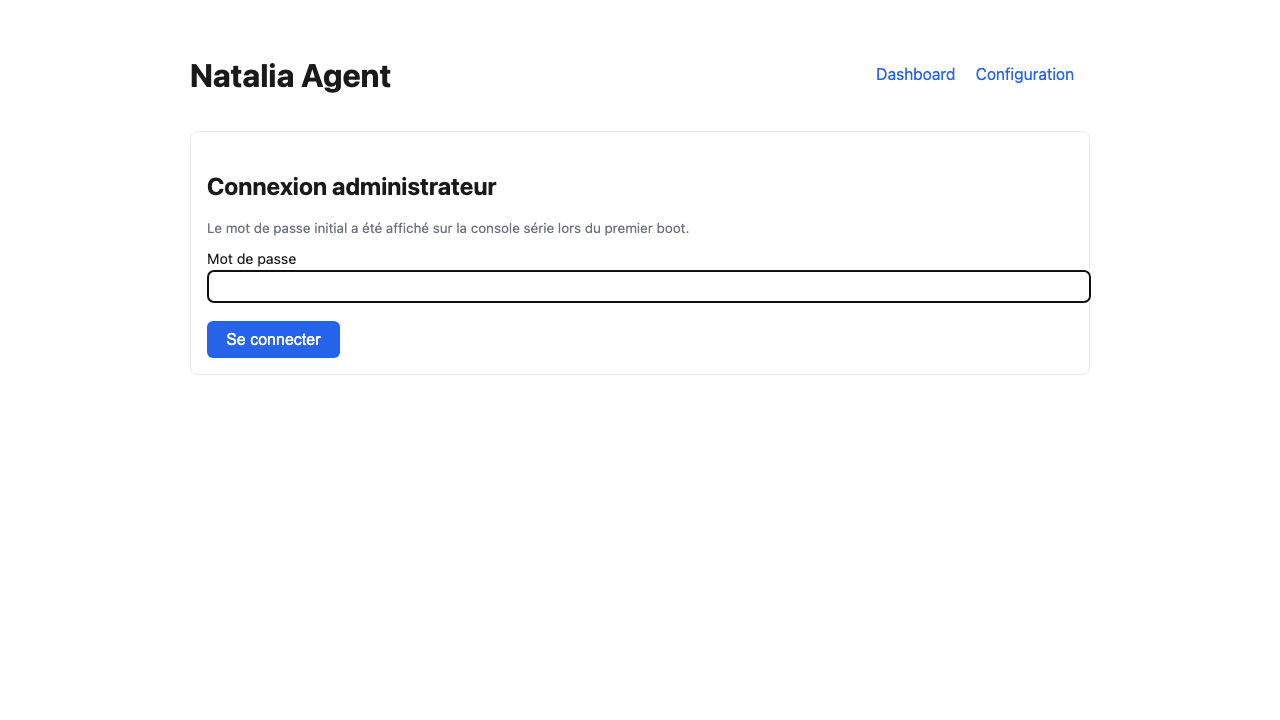
The initial admin password is displayed once on the serial console, and stored in the first-connection file of the data disk. Then open the web interface over HTTPS from your LAN (self-signed certificate at first boot).
Password lost: see appliance access.
Step 4/5
8-screen wizard
| 1 | Welcome | Overview of the steps. |
|---|---|---|
| 2 | Admin password | Enter the initial password, then set your own. |
| 3 | License | Paste or drop the signed license.toml file. |
| 4 | Network and mode | Network checks and choice of the contractual mode. |
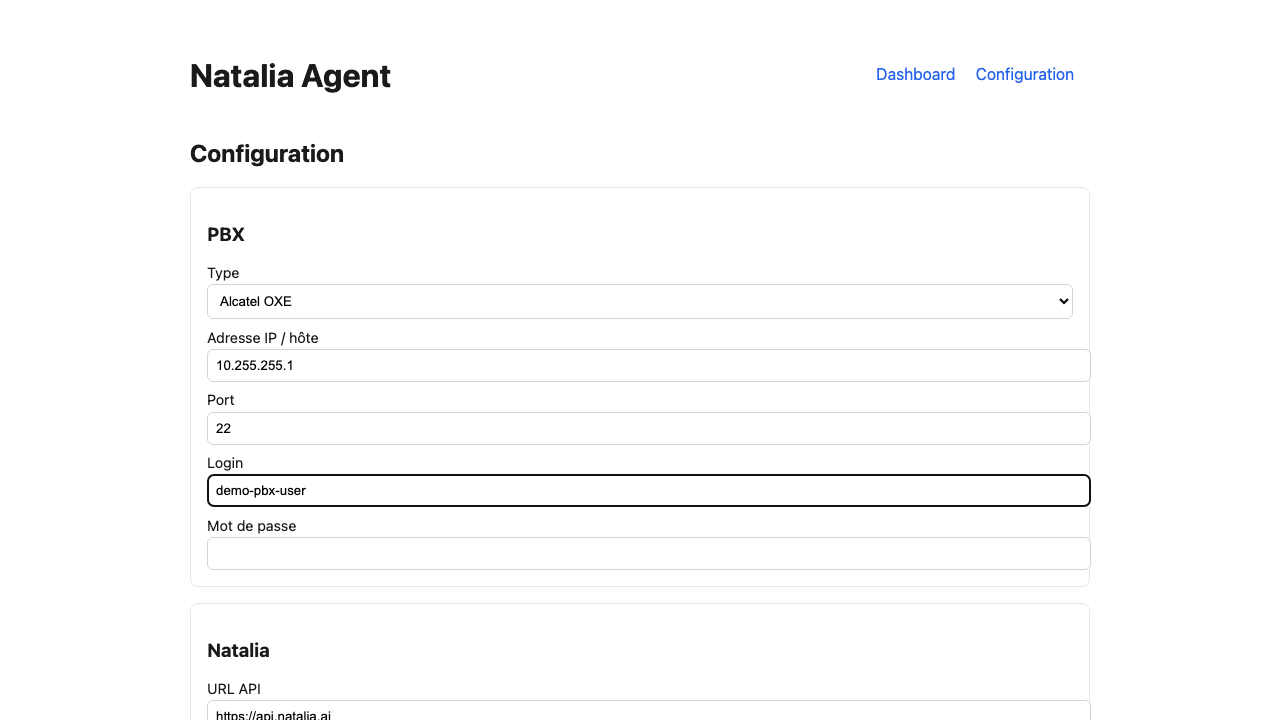
| 5 | PBX | Declare one or more OXE / OXO, test each connection. |
| 6 | First collection | The appliance fetches the first tickets. MCP setup. |
| 7 | Summary | Review of the configuration before validation. |
| 8 | Done | Access to the dashboard. |
The PBX collector is built into the appliance: nothing else to install. PBX screen details: OXE, OXO. Test codes: error codes.
Step 5/5
Verify CDR collection
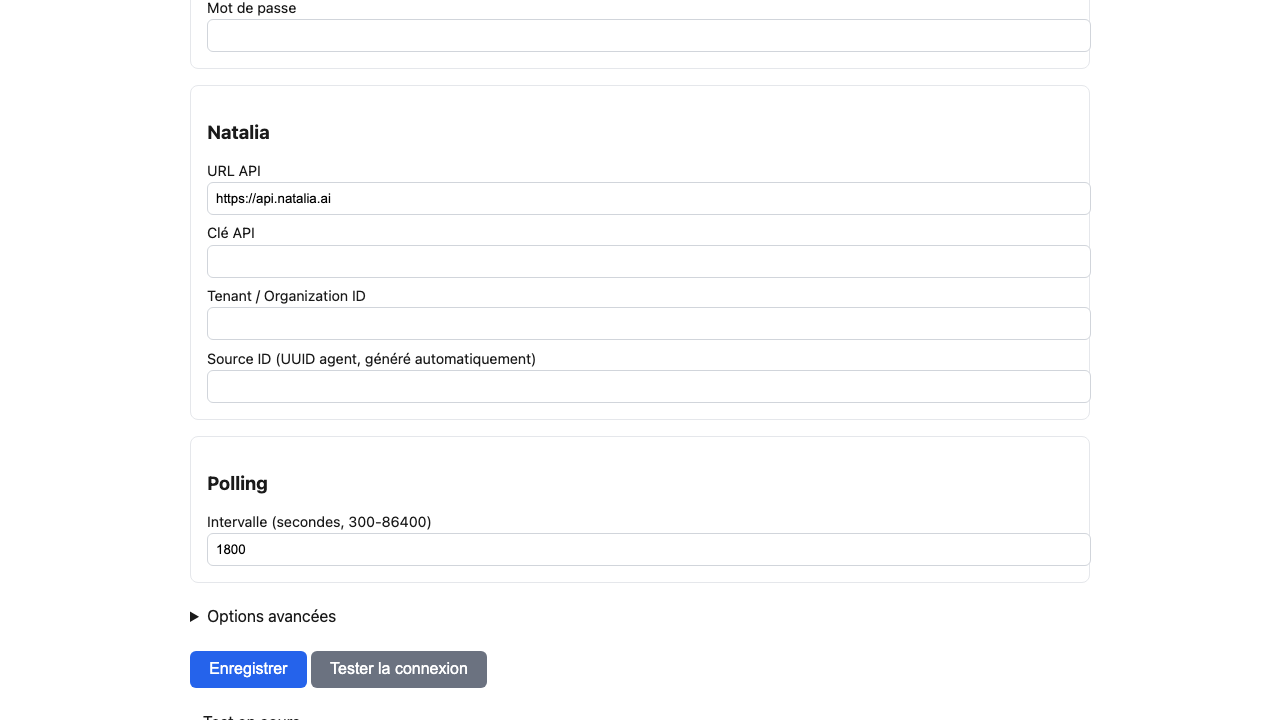
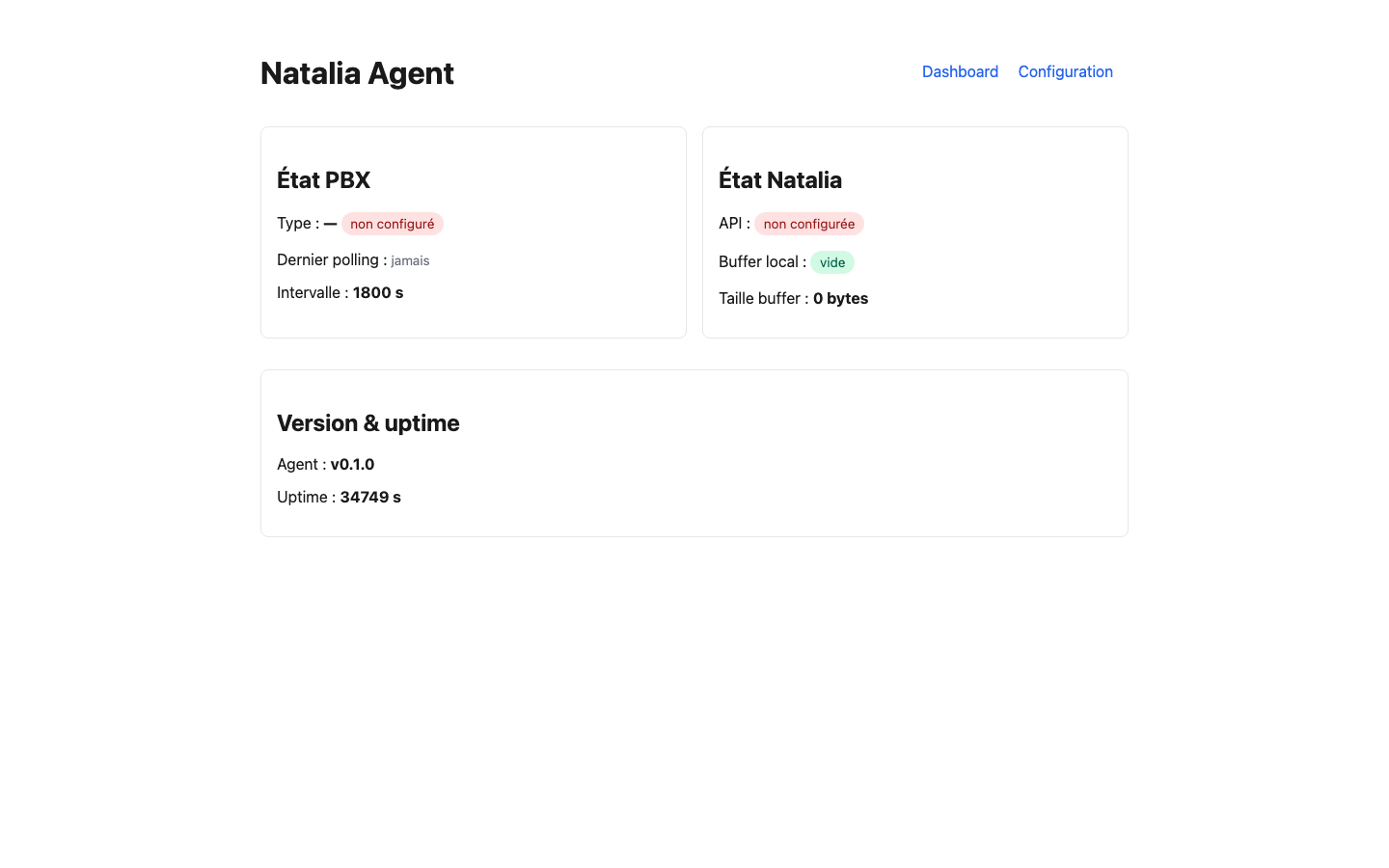
Open the dashboard and check that the first tickets arrive. Collection runs every 30 minutes by default (adjustable from 5 min to 24 h). Message "no CDR file detected yet": see troubleshooting.
Next
Plan the data disk backup, note the license expiry, read the security model.