Configure Alcatel OmniPCX Enterprise (OXE)
Step-by-step setup of Natalia Analytics for an Alcatel OXE PBX: verify the Taxation over IP license, enable SSH, configure the CDR collection path.
Step 1/4
Verify the Taxation over IP license
Connect to the OXE V24 console as root, then check the license catalog. Two equivalent approaches:
# Taxation license check (R8 through R13)
spadmin -l | grep -i "account\|compta\|taxation"
# Alternative: from netadmin -m → Licensing menuIf the license is missing, contact your usual Alcatel-Lucent integrator to obtain it before going further. Natalia cannot collect CDR without this license active. See NAT-AGT-002.
Step 2/4
Enable SSH and create the collection account
The Natalia agent collects ticket files over SCP, which requires SSH. Connect to the V24 console as root, then enable SSH from netadmin or directly via init.d:
# Via netadmin -m (logged as root from V24 console):
# → menu 11 "Security" → option 7 "SSH" → enable
# OR from the command line:
/etc/init.d/sshd start
Then create a dedicated collection account. Check that /bin/bash is listed in /etc/shells (some Alcatel images ship without it, which breaks SCP silently):
# Create the dedicated SCP account
useradd -m -s /bin/bash natalia-collector
passwd natalia-collector

# Ensure /etc/shells lists bash (required for SCP)
grep bash /etc/shells || echo /bin/bash >> /etc/shells

# Grant read access to the CDR folder
# Use setfacl as a safer alternative if umask is forced by ALE
chown -R natalia-collector:users /usr4/account/ \
|| setfacl -R -m u:natalia-collector:r /usr4/account/Step 3/4
Configure the CDR path in the agent web UI
From the Natalia agent web UI (https://<agent-IP>:8443), open the PBX configuration form and fill:
| Field | Value |
|---|---|
| PBX type | OXE |
| PBX IP | IP address of the OXE (CPU board) |
| Port | 22 (SSH/SCP) |
| Login | natalia-collector |
| Authentication | SSH key (recommended) or password |
| CDR path (advanced) | /usr4/account/ |
| Filename regex (advanced) | ^(icals|ocals).*\.csv$|\.DAT$ |
| Polling interval | 30 min (matches native OXE write cadence) |
On virtualized OXE (R11/R12), the CDR path can vary. Confirm it before configuring the agent:
# OXE virtualized R11/R12: path may differ
find /usr -name "TAXA*.DAT" -type f 2>/dev/null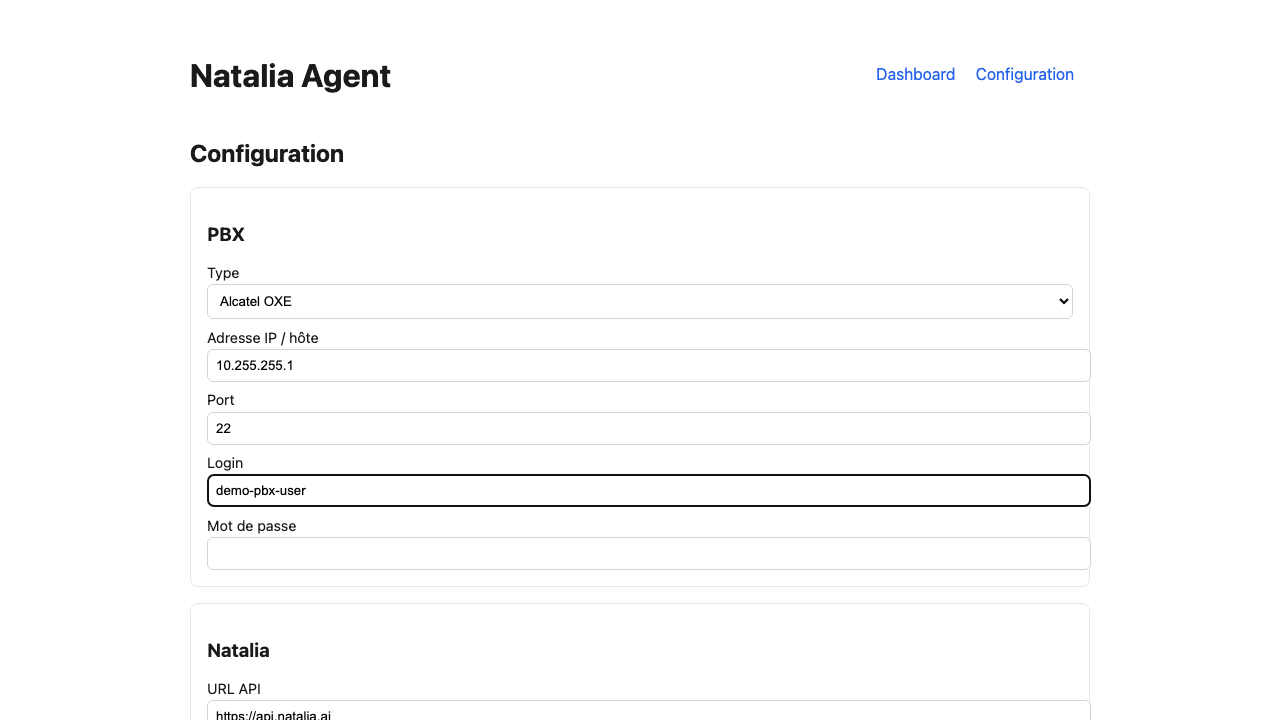
Step 4/4
Test the connection and collection
Click "Test the connection" in the form. The agent attempts an SCP connection, validates credentials and lists the first ticket files. Possible outcomes:
- ✅ OK — connection successful, N files detected. Save: the agent starts at the next cycle.
- ❌ NAT-AGT-004 — SSH connection refused — SSH is not enabled on the OXE, see step 2.
- ❌ NAT-AGT-003 — Permission denied — check /etc/shells contains /bin/bash and the read ACL on /usr4/account/.
- ❌ NAT-AGT-002 — OXE license missing — back to step 1, the Taxation over IP license is not active.
- ❌ NAT-AGT-005 — Path not found — the configured path does not exist on the OXE. Run the find command above.
The full agent error code reference (NAT-AGT-001 to 010) is on the error codes page.
Overview of the OXE collection flow
flowchart LR
    OXE["Alcatel OXE
R8 → R13
/usr4/account/"] -->|"SSH/SCP :22
icals · ocals · .DAT"| Agent["Natalia Agent VM
Alpine 3.20 · 80MB
Polling 30 min"]
    Agent -->|"HTTPS :443
Outbound only"| Cloud["Natalia Cloud
api.getnatalia.com
CDR ingest"]
    Cloud --> Dash["Web Dashboard
Real-time KPIs"]
    Cloud --> MCP["MCP Endpoint
LLM queries"]

    classDef pbx fill:#fef3c7,stroke:#d97706,stroke-width:2px,color:#78350f
    classDef agent fill:#dbeafe,stroke:#2563eb,stroke-width:2px,color:#1e3a8a
    classDef cloud fill:#d1fae5,stroke:#059669,stroke-width:2px,color:#064e3b
    classDef view fill:#f3e8ff,stroke:#7c3aed,stroke-width:2px,color:#4c1d95

    class OXE pbx
    class Agent agent
    class Cloud cloud
    class Dash,MCP view
Outbound HTTPS only, no inbound port required on the agent VM.